Introduction
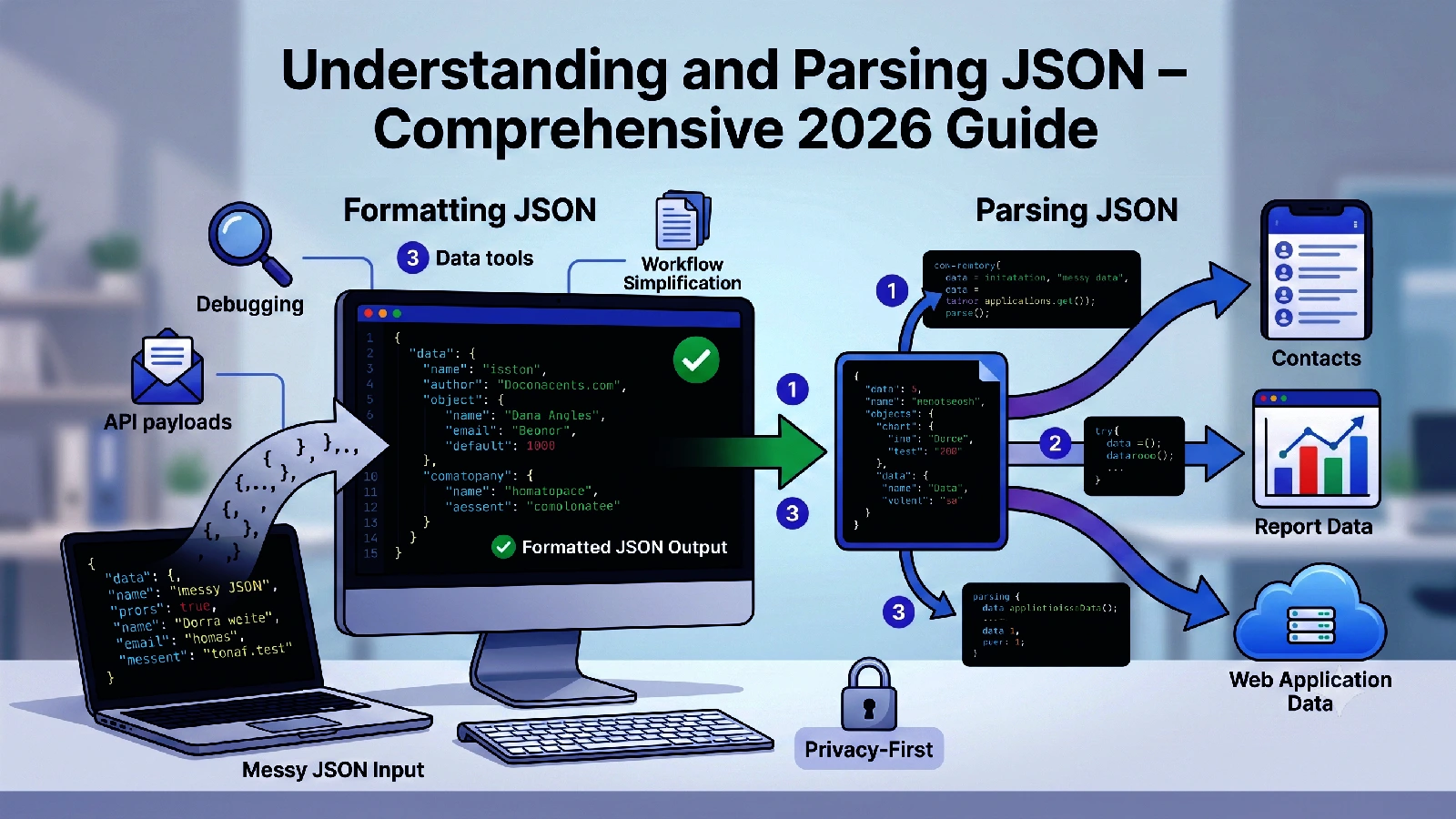
JSON (JavaScript Object Notation) has become the universal language of data exchange on the web. APIs return it, configuration files use it, databases store it, and developers work with it every single day. Despite its simplicity, working with raw JSON can be frustrating when it arrives as a single unformatted line of text.
Imagine receiving a 500-character API response with no line breaks, no indentation, and nested objects five levels deep. Trying to find a specific field or debug a structural issue in that wall of text is nearly impossible. This is where JSON formatting tools become essential.
In this guide, we will cover everything developers need to know about JSON formatting — the syntax rules, common errors, debugging techniques, and how to use ToolkitSpace’s JSON Formatter to make your JSON readable and valid.
What Is JSON?
JSON is a lightweight data interchange format that is both human-readable and machine-parseable. It was derived from JavaScript object syntax but is language-independent — virtually every programming language has built-in JSON support.
JSON Syntax Rules
JSON has a strict syntax with only a few rules:
Data Types:
- String: Text in double quotes —
"hello world" - Number: Integer or decimal —
42,3.14,-17 - Boolean:
trueorfalse(lowercase only) - Null:
null(lowercase only) - Object: Key-value pairs in curly braces —
{"key": "value"} - Array: Ordered list in square brackets —
[1, 2, 3]
Structural Rules:
- Objects use curly braces
{}with key-value pairs separated by commas - Keys must be strings in double quotes
- Arrays use square brackets
[]with items separated by commas - No trailing commas allowed
- No comments allowed (unlike JavaScript)
- No single quotes (must use double quotes)
Example of Valid JSON
{
  "name": "ToolkitSpace",
  "version": "1.0.0",
  "features": ["PDF tools", "Image tools", "Developer tools"],
  "isOnline": true,
  "pricing": null,
  "stats": {
    "totalTools": 50,
    "categories": 7,
    "users": 10000
  }
}
Why Format JSON?
Readability
Formatted JSON with proper indentation reveals the data structure at a glance. Compare:
Unformatted:
{"users":[{"name":"Alice","age":30,"roles":["admin","editor"]},{"name":"Bob","age":25,"roles":["viewer"]}],"total":2}Formatted:
{
  "users": [
    {
      "name": "Alice",
      "age": 30,
      "roles": ["admin", "editor"]
    },
    {
      "name": "Bob",
      "age": 25,
      "roles": ["viewer"]
    }
  ],
  "total": 2
}
The formatted version immediately shows the structure, nesting levels, and relationships between data elements.
Debugging
When an API returns an error or unexpected data, formatted JSON helps you quickly identify:
- Missing or extra fields
- Wrong data types (string where number expected)
- Incorrect nesting levels
- Structural issues in arrays or objects
Documentation
Formatted JSON is essential for API documentation, README files, and configuration examples. Developers reading your documentation need to understand the expected data structure at a glance.
Version Control
Formatted JSON with one key-value pair per line produces meaningful diffs in version control systems like Git. When someone changes a single value, the diff shows exactly one line changed — not the entire file.
Step-by-Step: Format JSON with ToolkitSpace
Step 1: Open JSON Formatter
Navigate to ToolkitSpace JSON Formatter. The tool is ready to use immediately in your browser.
Step 2: Input Your JSON
Paste your unformatted JSON into the input area. You can paste raw API responses, configuration files, or any JSON text. The input area accepts JSON of any size.
Step 3: Format or Validate
Click the format button to beautify the JSON with proper indentation. The tool simultaneously validates the syntax and highlights any errors with line numbers and descriptions.
Step 4: Copy or Download
Copy the formatted output to your clipboard or download it as a file. The formatted JSON is ready to paste into your code editor, documentation, or configuration file.
Common JSON Errors and How to Fix Them
Trailing Commas
Invalid:
{
  "name": "Alice",
  "age": 30,
}
Fix: Remove the comma after the last property:
{
  "name": "Alice",
  "age": 30
}
This is the most common JSON error, especially for developers coming from JavaScript where trailing commas are allowed.
Single Quotes
Invalid:
{
  'name': 'Alice'
}
Fix: Use double quotes for all strings and keys:
{
  "name": "Alice"
}
Unquoted Keys
Invalid:
{
  name: "Alice"
}
Fix: Wrap keys in double quotes:
{
  "name": "Alice"
}
Comments
Invalid:
{
  "name": "Alice", // user name
  "age": 30 /* years old */
}
Fix: Remove all comments. JSON does not support comments:
{
  "name": "Alice",
  "age": 30
}
If you need comments in configuration files, consider using JSON5 or JSONC (JSON with Comments), which some tools support. Standard JSON parsers will reject comments.
Unsupported JavaScript Values
Invalid:
{
  "value": void 0,
  "result": NaN
}
Fix: Use null for missing values. JavaScript-only missing values and NaN are not valid JSON:
{
  "value": null,
  "result": null
}
Mismatched Brackets
Invalid:
{
  "items": [1, 2, 3}
}
Fix: Ensure opening and closing brackets match:
{
  "items": [1, 2, 3]
}
Special Characters in Strings
Certain characters must be escaped in JSON strings:
\"— double quote\\— backslash\n— newline\t— tab\r— carriage return\uXXXX— Unicode character
Invalid:
{
  "path": "C:\Users\Alice"
}
Fix:
{
  "path": "C:\\Users\\Alice"
}
JSON Formatting Best Practices
Use 2-Space Indentation
The most common JSON formatting convention uses 2 spaces per indentation level. It provides clear visual hierarchy without excessive horizontal space:
{
  "level1": {
    "level2": {
      "level3": "value"
    }
  }
}
One Property Per Line
Each key-value pair should be on its own line for readability and clean version control diffs:
{
  "firstName": "Alice",
  "lastName": "Smith",
  "email": "alice@example.com"
}
Short Arrays on One Line
Simple arrays with few short elements can stay on one line:
{
  "colors": ["red", "green", "blue"],
  "coordinates": [42.3601, -71.0589]
}
But longer or nested arrays should be expanded:
{
  "users": [
    { "name": "Alice", "role": "admin" },
    { "name": "Bob", "role": "editor" },
    { "name": "Charlie", "role": "viewer" }
  ]
}
Consistent Key Ordering
While JSON does not require keys to be in any order, maintaining consistent ordering (alphabetical or logical grouping) improves readability:
{
  "id": 1,
  "name": "Product Name",
  "category": "Electronics",
  "price": 29.99,
  "inStock": true
}
Working with JSON in Development
API Response Debugging
When debugging API responses:
- Copy the raw response from your browser DevTools Network tab
- Paste into JSON Formatter
- Look for unexpected null values, wrong types, or missing fields
- Compare the structure against the API documentation
Configuration File Editing
Many modern tools use JSON for configuration (package.json, tsconfig.json, etc.):
- Always validate after manual edits
- Use formatting to catch structural errors before committing
- Keep configuration files formatted for readable diffs in pull requests
Database Debugging
NoSQL databases like MongoDB store documents as JSON (or BSON). When querying:
- Format query results to understand document structure
- Validate query parameters before sending
- Compare documents by formatting both and using a diff tool
Data Transformation
When transforming data between systems:
- Format input JSON to understand the source structure
- Plan your transformation mapping
- Format output JSON to verify the result
- Validate both input and output to catch encoding issues
JSON vs Other Data Formats
JSON vs XML
| Feature | JSON | XML |
|---|---|---|
| Readability | Clean, concise | Verbose |
| Parsing speed | Fast | Slower |
| Data types | Native types | Everything is text |
| Arrays | Native support | Requires workarounds |
| Attributes | No | Yes |
| Comments | No | Yes |
| Schema | JSON Schema | XSD, DTD |
JSON is preferred for APIs and modern applications. XML remains common in enterprise systems, document formats, and configurations that need attributes and comments.
JSON vs YAML
| Feature | JSON | YAML |
|---|---|---|
| Readability | Good | Excellent |
| Strictness | Strict | Flexible |
| Comments | No | Yes |
| Complexity | Simple | More complex |
| Indentation | Braces-based | Whitespace-based |
| Machine parsing | Easy | More complex |
YAML is popular for configuration files (Docker Compose, GitHub Actions, Kubernetes) where human editing is common. JSON is better for machine-to-machine communication.
Minification: The Opposite of Formatting
While formatting adds whitespace for readability, minification removes it for efficiency. Minified JSON:
- Takes less bandwidth to transmit
- Parses marginally faster (fewer characters to process)
- Uses less storage space
Use minification for:
- API responses in production
- Embedded JSON in HTML/JavaScript
- Data storage where size matters
Use formatting for:
- Development and debugging
- Configuration files under version control
- Documentation and examples
- Log files for human review
ToolkitSpace’s JSON Formatter includes both beautify and minify options, so you can switch between formats as needed.
Conclusion
JSON formatting is a small step that makes a large difference in developer productivity. Readable JSON helps you debug faster, communicate more clearly, and maintain cleaner code repositories.
ToolkitSpace’s JSON Formatter provides instant formatting, validation, and minification — all free, all in your browser, with no data sent to any server. Whether you are debugging an API response, editing a configuration file, or preparing documentation, formatted JSON saves time and prevents errors.
Bookmark the tool and use it whenever you encounter unformatted JSON. Your future self will thank you.
For other developer tools, check out Base64 Encoder and URL Encoder for common encoding tasks.
Frequently Asked Questions
What is the difference between formatting and validating JSON?
Formatting adds proper indentation and line breaks for readability. Validation checks whether the JSON syntax is correct according to the specification.
Can I format JSON with custom indentation?
ToolkitSpace formats JSON with 2-space indentation by default, which is the most common standard for readability.
Is there a size limit for JSON formatting?
The tool handles JSON files of any reasonable size. Very large files (10MB+) may take a moment to process in the browser.
Does the formatter modify my data?
No. Formatting only changes whitespace and indentation. All keys, values, and data structure remain identical.
Can I minify JSON instead of formatting it?
Yes, ToolkitSpace's JSON Formatter includes a minify option that removes all unnecessary whitespace for compact output.