Introduction
QR codes have become an essential part of everyday life. From restaurant menus and payment systems to product packaging and event tickets, these square patterns bridge the physical and digital worlds instantly. What was once a niche technology used primarily in manufacturing has evolved into a universal tool for sharing information.
The beauty of QR codes lies in their simplicity. Anyone can create one in seconds, and anyone with a smartphone can scan one. There is no app to install (modern phone cameras handle scanning natively), no account to create, and no cost involved.
In this comprehensive guide, we will cover everything about QR codes — how they work, how to create them, and how to use them effectively for personal and business purposes.
What Is a QR Code?
QR stands for “Quick Response.” A QR code is a two-dimensional barcode that stores information in a pattern of black and white squares arranged on a grid. Unlike traditional barcodes that encode data in one direction (horizontally), QR codes encode data both horizontally and vertically, allowing them to store significantly more information.
Brief History
QR codes were invented in 1994 by Denso Wave, a Japanese automotive parts company. They needed a barcode system that could store more data than standard barcodes and could be read quickly by scanners on production lines. The “Quick Response” name reflects this original requirement for speed.
The technology was made freely available without licensing restrictions, which enabled its widespread adoption. While initially used in industrial applications, QR codes gained mainstream popularity with the rise of smartphones and their built-in cameras.
How QR Codes Store Data
A QR code consists of several functional areas:
- Finder patterns: The three large squares in the corners help scanners locate and orient the code
- Alignment patterns: Smaller squares that help with distortion correction
- Timing patterns: Alternating black and white modules that define the grid spacing
- Format information: Tells the scanner about error correction level and mask pattern
- Data area: The actual encoded information
- Error correction: Redundant data that allows the code to be read even if partially damaged
QR codes support four encoding modes:
- Numeric: Digits 0-9 (most efficient for numbers)
- Alphanumeric: Uppercase letters, digits, and some symbols
- Byte: Any 8-bit data including UTF-8 text
- Kanji: Japanese character encoding
Error Correction
One of the most useful features of QR codes is built-in error correction using Reed-Solomon codes. There are four levels:
- Level L: ~7% of data can be restored
- Level M: ~15% of data can be restored
- Level Q: ~25% of data can be restored
- Level H: ~30% of data can be restored
Higher error correction means the code still scans even if partially covered, damaged, or printed at low quality — but it also makes the QR code visually denser (more modules for the same data).
Step-by-Step: Generate a QR Code
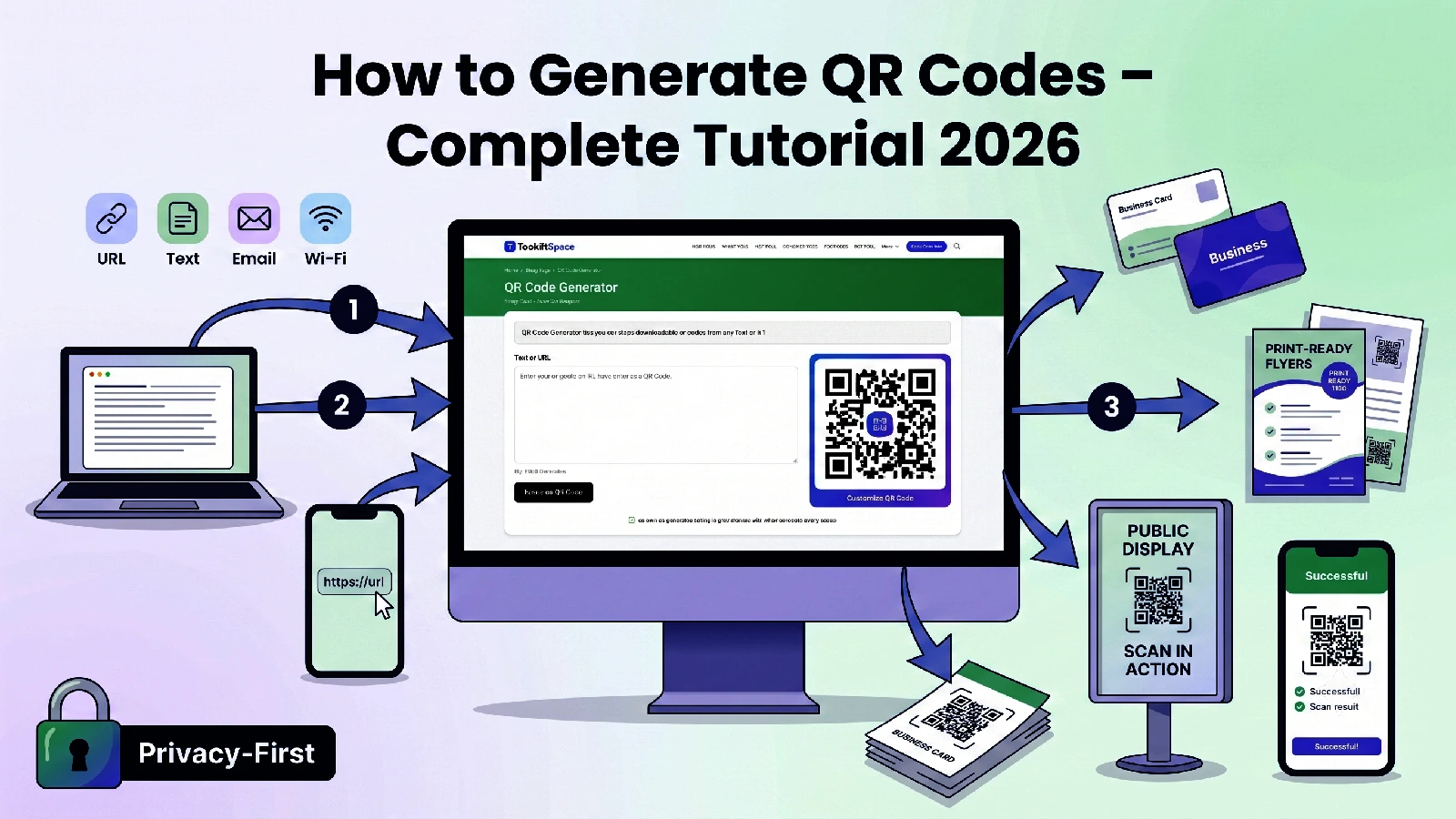
Creating a QR code with ToolkitSpace’s QR Code Generator takes just seconds:
Step 1: Open the Tool
Navigate to ToolkitSpace QR Code Generator. The tool loads instantly in your browser — no account or installation needed.
Step 2: Enter Your Content
Type or paste the text, URL, or data you want to encode into the input field. The QR code generates automatically as you type, so you can see the result in real time.
Common content types:
- URL:
https://toolkitspace.com - Plain text: Any message or note
- Email:
mailto:info@example.com - Phone:
tel:+1234567890 - WiFi:
WIFI:T:WPA;S:NetworkName;P:password;; - SMS:
sms:+1234567890?body=Hello
Step 3: Download
Click the “Download” button to save the QR code as a PNG image. The downloaded image is high-resolution and ready for both digital use and printing.
Practical QR Code Uses
Business Applications
Marketing Materials
- Add QR codes to business cards linking to your website or portfolio
- Include them on flyers and brochures for more information
- Place them on product packaging for user manuals or tutorials
- Use on billboards to drive traffic to landing pages
Restaurants and Retail
- Digital menus accessible via table QR codes
- Contactless payment links
- Product information and reviews
- Loyalty program sign-ups
Events
- Paperless ticket scanning
- Event check-in systems
- WiFi access for attendees
- Digital program schedules
Personal Uses
Sharing Contact Information Encode your contact details (vCard format) in a QR code on your business card. When scanned, it automatically adds your information to the scanner’s phone contacts.
WiFi Sharing Create a QR code with your WiFi credentials. Guests scan it and connect automatically — no need to spell out complicated passwords. The format is:
WIFI:T:WPA;S:YourNetworkName;P:YourPassword;;Social Media Profiles Generate codes linking to your Instagram, LinkedIn, or other profiles for easy following at networking events.
Payment Links Create QR codes for payment apps or crypto wallet addresses to receive payments easily.
Educational Uses
- Link to supplementary materials from printed textbooks
- Provide audio guides in museums or galleries
- Direct students to online quizzes or resources
- Share assignment submission links
Design and Printing Tips
Size Requirements
The minimum printed size for a QR code depends on scanning distance:
- Business card (scanning at arm’s length): Minimum 2 cm × 2 cm
- Flyer or poster (scanning from 1-2 meters): At least 5 cm × 5 cm
- Billboard (scanning from several meters): At least 30 cm × 30 cm
The general rule: QR code width should be at least 1/10th of the scanning distance.
Contrast and Colors
- Always maintain high contrast between the code and background
- Black code on white background works best
- Dark colors on light backgrounds are acceptable
- Never use light code on dark background (many scanners struggle)
- Ensure a quiet zone (white border) around the code — at least 4 modules wide
Print Quality
- Use at least 300 DPI for printed QR codes
- Vector formats (SVG) scale perfectly to any size
- Avoid printing on textured or glossy surfaces that cause reflections
- Test scan your printed codes before mass production
Placement Considerations
- Place codes where people can easily scan them (eye level, accessible)
- Avoid placing on curved surfaces that distort the pattern
- Add a brief call-to-action (“Scan for menu” or “Scan to connect”)
- Ensure adequate lighting where the code will be scanned
Testing Your QR Codes
Always test QR codes before deployment:
- Scan with multiple devices: Test on both iPhone and Android phones
- Test at intended distance: Verify scanning works from the expected distance
- Check the destination: Ensure the encoded URL or data is correct
- Test printed copies: Print quality can affect scannability
- Verify error correction: If the code will be partially covered (by a logo overlay, for example), ensure it still scans
You can also use ToolkitSpace’s QR Code Scanner to verify the encoded content by uploading the generated QR code image.
Common Mistakes to Avoid
Encoding Too Much Data
More data means a denser QR code with more modules, which requires larger print sizes and better scan conditions. Keep content concise:
- Use URL shorteners for long links
- Link to a webpage rather than encoding all information directly
- Keep text content under 300 characters for easy scanning
No Error Correction Margin
If your QR code will be printed on materials that might get dirty, folded, or partially obscured, use higher error correction levels. A business card in a wallet needs more error correction than a QR code on a clean indoor sign.
Missing Call to Action
A QR code without context means nothing to most people. Always include:
- What happens when they scan it
- Why they should scan it
- A brief text label near the code
Not Testing
The number one mistake is deploying QR codes without testing. A QR code with a typo in the URL or one that is too small to scan is worse than useless — it frustrates users and reflects poorly on your brand.
Linking to Non-Mobile Content
If your QR code links to a website, ensure that website is mobile-friendly. People scan QR codes with phones, so they need a responsive experience on the other end.
Static vs Dynamic QR Codes
Static QR Codes
Static codes encode data directly. Once created, the content cannot be changed.
Pros:
- Work offline (data is in the code itself)
- Never expire
- No dependency on external services
- Completely free
Cons:
- Cannot be updated after printing
- Cannot track scan analytics
- Longer URLs create denser codes
ToolkitSpace generates static QR codes, which are ideal for permanent content that will not change.
Dynamic QR Codes
Dynamic codes encode a short redirect URL that can be changed later. They require a service to maintain the redirect.
Pros:
- Can update destination without reprinting
- Scan analytics available
- Shorter URL means less dense code
Cons:
- Depend on a third-party service staying online
- Often require paid subscriptions
- If the service goes down, codes stop working
QR Codes and Security
For Creators
- Only encode trustworthy URLs
- Use HTTPS links for security
- Keep landing pages updated and malware-free
- Consider where your code will be displayed (public codes should not link to sensitive systems)
For Scanners
- Preview the URL before opening (most phones show the link)
- Be cautious with codes in unexpected places (they could be tampered with)
- Do not scan codes that override legitimate ones (sticker attacks)
- Be wary of codes that request app downloads or personal information
Conclusion
QR codes are a simple, powerful way to bridge physical and digital content. Whether you are sharing a URL, providing WiFi access, or enabling contactless transactions, a QR code gets the job done instantly.
Creating QR codes is completely free and takes seconds with ToolkitSpace’s QR Code Generator. Enter your content, download the PNG, and use it anywhere — on print materials, digital displays, product packaging, or presentations.
Need to decode an existing QR code? Use ToolkitSpace’s QR Code Scanner to read the content from any image file.
For the best results, keep your encoded content concise, test before deploying, and always include a clear call-to-action telling people what they will get when they scan.
Frequently Asked Questions
Are QR codes free to create?
Yes, generating QR codes is completely free with ToolkitSpace. There are no limits on how many you can create.
Do QR codes expire?
Static QR codes never expire. They contain the data directly and will work forever as long as the encoded content (like a URL) remains valid.
What is the maximum data a QR code can store?
A QR code can store up to 2,953 bytes of data, which translates to roughly 4,296 alphanumeric characters or 7,089 numeric digits.
Can I customize the appearance of my QR code?
ToolkitSpace generates standard black-and-white QR codes. For color customization, you can edit the downloaded PNG in any image editor.
How do I scan a QR code?
Most smartphone cameras can scan QR codes natively. Point your camera at the code, and a notification will appear. You can also use ToolkitSpace's QR Code Scanner to decode from an image file.