Introduction
Choosing between JPG and PNG is one of the most fundamental decisions in digital image handling. Whether you are building a website, preparing social media graphics, or simply organizing your photo library, understanding when to use each format directly impacts image quality, file size, and loading performance.
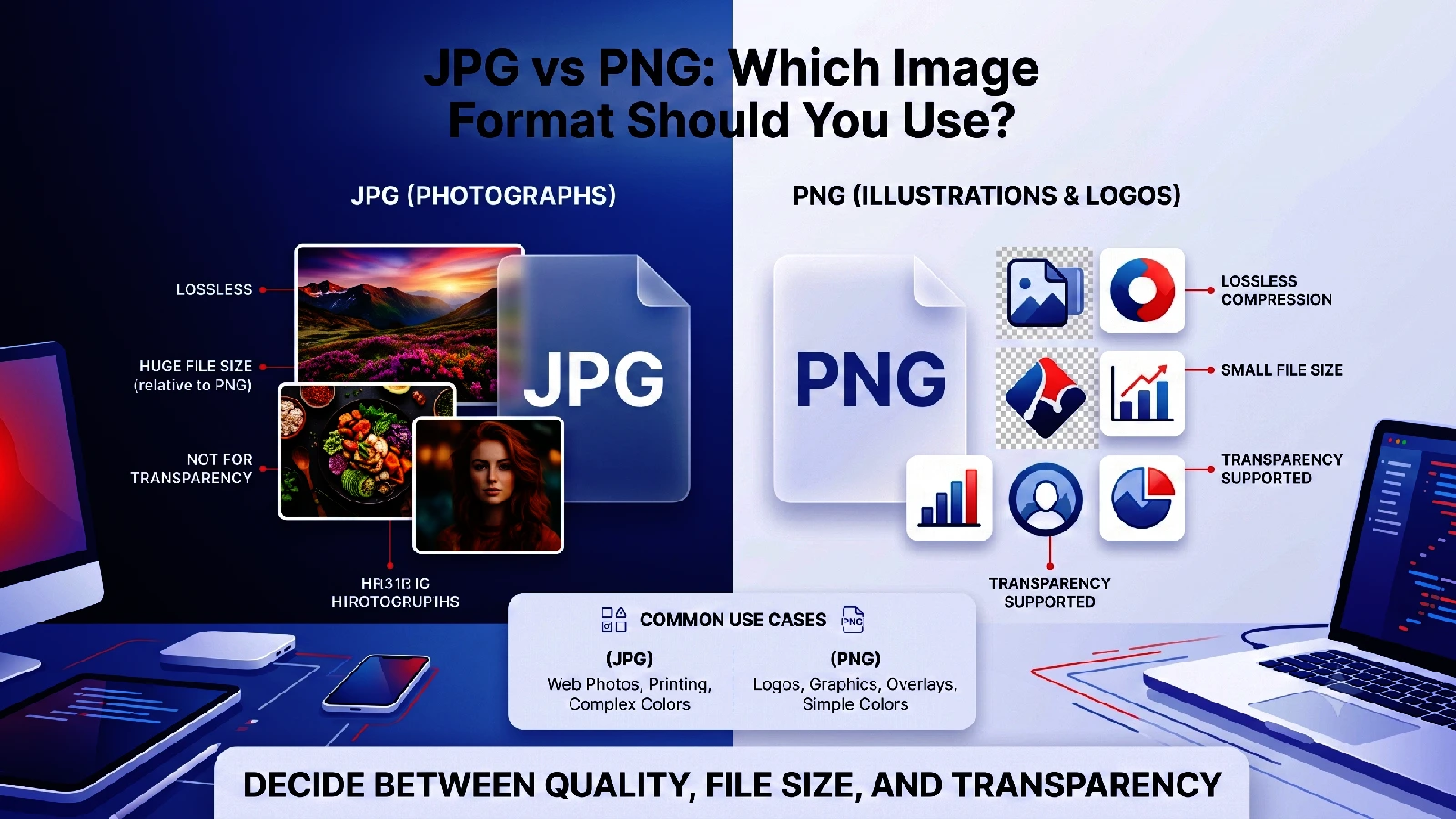
Both formats have been around for decades and serve different purposes. JPG (also written as JPEG) excels at storing photographs with millions of colors in relatively small files. PNG was designed for web graphics and offers features like transparency and lossless compression that JPG cannot provide.
This guide breaks down everything you need to know about both formats, helps you decide which to use in every situation, and shows you how to convert between them using free tools.
Understanding JPG (JPEG)
What Is JPG?
JPG (Joint Photographic Experts Group) is a lossy image compression format created in 1992. It was specifically designed for continuous-tone images like photographs, where subtle color variations and gradients are common.
How JPG Compression Works
JPG compression analyzes an image in small blocks (typically 8x8 pixels) and uses a mathematical technique called the Discrete Cosine Transform (DCT) to identify which visual information can be discarded without significantly affecting perceived quality.
The compression level is adjustable — higher compression produces smaller files but more visible artifacts. At quality levels of 70-85%, most photographs look indistinguishable from the original to casual viewers.
JPG Strengths
- Small file sizes: Photographs can be compressed 10-20x smaller than raw pixel data
- Universal support: Every device, browser, and application supports JPG
- Adjustable quality: Fine control over the size/quality tradeoff
- Good for photographs: Excellent at preserving the appearance of natural images
- Progressive loading: Can display a low-quality preview while the full image loads
JPG Limitations
- Lossy compression: Each save operation potentially degrades quality further
- No transparency: Cannot have transparent areas — the background is always solid
- Artifacts on edges: Sharp edges, text, and line art show visible compression artifacts
- No animation: Cannot store multiple frames like GIF or APNG
- Quality degradation: Repeated editing and saving compounds quality loss
Understanding PNG
What Is PNG?
PNG (Portable Network Graphics) was developed in 1996 as a patent-free alternative to GIF. It uses lossless compression, meaning the decompressed image is identical pixel-for-pixel to the original.
How PNG Compression Works
PNG uses the DEFLATE compression algorithm (the same one used in ZIP files) to reduce file size without discarding any image data. It also uses prediction filters that analyze relationships between neighboring pixels to improve compression ratios.
PNG supports different color modes:
- PNG-8: Up to 256 colors with a color palette (similar to GIF)
- PNG-24: Full 24-bit color (16.7 million colors) without transparency
- PNG-32: Full color with an alpha channel for variable transparency
PNG Strengths
- Lossless quality: No data is discarded during compression
- Transparency support: Full alpha channel with variable opacity (0-255 levels)
- Sharp edges: Perfect for text, logos, screenshots, and line art
- No generation loss: Can be edited and saved repeatedly without quality degradation
- Good for graphics: Ideal for UI elements, icons, and illustrations with flat colors
PNG Limitations
- Larger file sizes: Photographs produce much larger files than JPG (often 3-5x)
- No native animation: Standard PNG does not support animation (APNG does, but support varies)
- Overkill for photos: Using PNG for photographs wastes bandwidth and storage
- Slower loading: Larger files take longer to download on slower connections
Direct Comparison
File Size
For a typical 1920x1080 photograph:
- JPG at quality 80: ~200-400 KB
- PNG-24: ~2-5 MB
For a typical 500x500 logo with flat colors:
- JPG at quality 90: ~50-100 KB (with visible artifacts on edges)
- PNG-8: ~15-30 KB (perfect quality)
The size difference is dramatic for photographs, but PNG can actually be smaller for simple graphics with few colors.
Quality
- JPG: Excellent for photographs; poor for sharp edges and text
- PNG: Perfect for all content types, but overkill for photographs
Transparency
- JPG: No support at all
- PNG: Full alpha channel with 256 levels of transparency per pixel
Best Use Cases
| Use Case | Best Format | Reason |
|---|---|---|
| Photographs | JPG | Much smaller file size |
| Logos | PNG | Sharp edges, transparency |
| Screenshots | PNG | Text stays crisp |
| Social media photos | JPG | Smaller uploads, faster loading |
| Web icons | PNG | Transparency, small file at low resolution |
| Print photos | JPG (high quality) | Adequate quality, manageable size |
| Line art/diagrams | PNG | Perfect edge rendering |
| Product images (with background) | JPG | Smaller file for e-commerce |
| Product images (transparent) | PNG | Transparency for overlays |
When to Use JPG
Choose JPG when:
- The image is a photograph — natural scenes, portraits, landscapes
- File size matters more than perfection — web pages, email attachments
- Transparency is not needed — solid backgrounds are acceptable
- The image will not be re-edited — avoid multiple compression cycles
- Loading speed is critical — smaller files load faster on all connections
JPG Quality Settings Guide
- Quality 90-100: Near-lossless, large files. Use for archival or professional photography
- Quality 75-89: Excellent balance. Recommended for most web photographs
- Quality 60-74: Noticeable compression on close inspection. Good for thumbnails or previews
- Quality below 60: Visible artifacts. Only for very small file size requirements
When to Use PNG
Choose PNG when:
- Transparency is required — logos on variable backgrounds, overlays, UI elements
- The image contains text — screenshots, infographics, diagrams
- Sharp edges must be preserved — illustrations, vector-like graphics, icons
- Lossless quality is needed — source files, archives, editing workflows
- The image has few colors — simple graphics where PNG-8 is smaller than JPG
Converting Between Formats
JPG to PNG
Converting JPG to PNG is straightforward and lossless — no additional quality is lost. You might want to do this when:
- You need to add transparency to an existing photo
- A platform requires PNG uploads
- You want to prevent further quality loss from re-saving
Use ToolkitSpace’s JPG to PNG Converter for instant, free conversion.
PNG to JPG
Converting PNG to JPG is lossy — some quality will be lost, and transparency is replaced with a solid background (typically white). Reasons to convert:
- Reduce file size for photographs stored as PNG
- Meet file format requirements for certain platforms
- Optimize web page loading speed
Use ToolkitSpace’s PNG to JPG Converter with adjustable quality settings.
The WebP Alternative
WebP is a modern format by Google that combines the best of both worlds:
- Lossy mode: Smaller than JPG at equivalent quality (25-35% savings)
- Lossless mode: Smaller than PNG (26% smaller on average)
- Transparency: Supported in both lossy and lossless modes
- Animation: Supported (alternative to GIF)
The main limitation was browser support, but all modern browsers now support WebP. For web content, converting to WebP with ToolkitSpace’s WebP Converter often gives you the best combination of quality and file size.
Optimization Tips
For Websites
- Use JPG for hero images and photographs
- Use PNG for logos, icons, and UI elements
- Consider WebP with JPG/PNG fallbacks for maximum savings
- Compress images before uploading using Image Compressor
- Use appropriate dimensions — do not serve a 4000px image in a 400px container
For Social Media
- Use JPG for photo posts (platforms compress further anyway)
- Use PNG for graphics with text overlays
- Check platform dimension requirements and resize accordingly
- Most platforms accept both formats — choose based on content type
For Print
- Use high-quality JPG (90+) for photographs
- Use PNG for graphics that need crisp edges
- Ensure resolution is at least 300 DPI for print
- Keep master files in PNG and export JPG copies for distribution
Conclusion
The choice between JPG and PNG comes down to content type and requirements:
- Use JPG for photographs and images where small file size matters more than pixel-perfect quality
- Use PNG for graphics, logos, screenshots, and any image requiring transparency
Both formats have clear strengths, and using the right one for each situation optimizes both quality and performance. When you need to convert between them, ToolkitSpace offers free, instant converters:
- JPG to PNG Converter — add transparency support and prevent further quality loss
- PNG to JPG Converter — reduce file size for photographs
- WebP Converter — get the best of both worlds with modern compression
- Image Compressor — optimize any image format for smaller file sizes
Frequently Asked Questions
Is JPG or PNG better for web images?
JPG is better for photographs due to smaller file sizes. PNG is better for graphics, logos, and images requiring transparency.
Does converting JPG to PNG improve quality?
No. Converting JPG to PNG preserves existing quality but cannot recover detail lost during JPG compression. It does add transparency support.
Why are PNG files larger than JPG?
PNG uses lossless compression that preserves all pixel data, while JPG uses lossy compression that discards some detail to achieve smaller sizes.
When should I use WebP instead?
WebP offers better compression than both JPG and PNG with support for both lossy and lossless modes. Use it for web content when browser support is not a concern.
Can I convert between formats without losing quality?
Converting PNG to JPG is lossy (some quality loss). Converting JPG to PNG is lossless but cannot restore previously lost quality.
Tools mentioned in this guide
JPG to PNG Converter
Convert JPG images to PNG format with transparency support.
PNG to JPG Converter
Convert PNG images to JPG format with adjustable quality.
Image Compressor
Reduce image file size with adjustable quality settings.
WebP Converter
Convert JPG, PNG, BMP, or GIF images to modern WebP format.