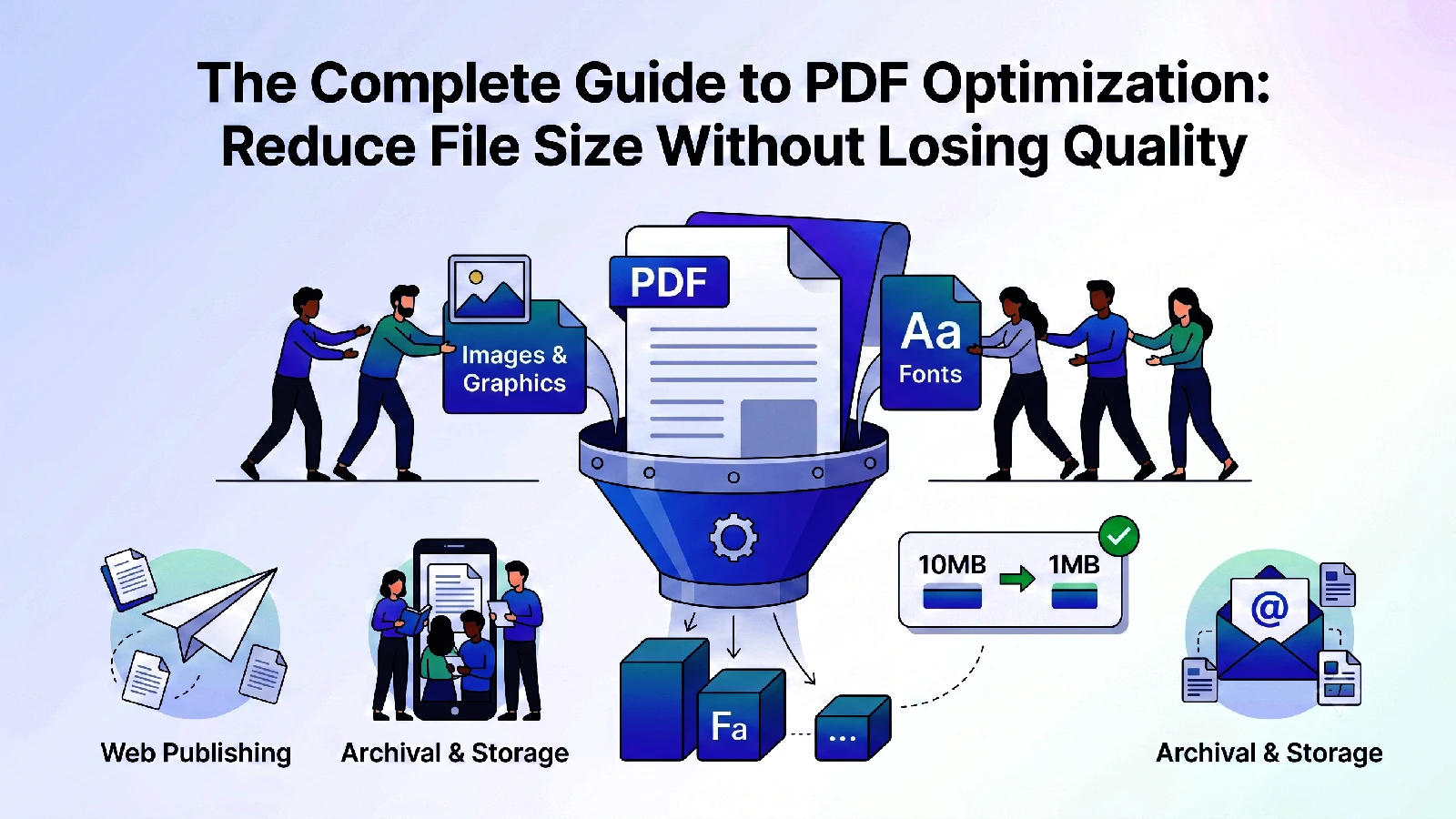
PDF files have become the universal standard for document sharing in professional environments. Whether you’re sending contracts, reports, presentations, or design files, PDFs ensure consistent formatting across all devices and operating systems. However, large PDF files create significant problems: they’re slow to email, consume valuable storage space, and can negatively impact user experience on websites and mobile devices.
According to recent studies, 87% of professionals struggle with file size issues when sharing documents, and oversized PDFs are a leading cause of failed email deliveries. The average PDF file size has increased 340% over the last decade, making optimization more critical than ever.
Understanding PDF File Size: The Technical Basics
Before diving into optimization techniques, it’s essential to understand what actually contributes to PDF file size. PDFs can contain multiple layers of content, each affecting the final file size:
Images and Graphics
Images typically account for 70-80% of a PDF’s file size. Every image embedded in your PDF—whether it’s a photograph, chart, or infographic—stores full resolution data. A single high-resolution image can easily add 2-5 MB to your PDF.
Fonts
PDFs often embed entire font files to ensure text renders identically on every device. A single font file can add 100-300 KB, and if you’re using multiple fonts, this adds up quickly.
Form Fields and Interactivity
Interactive PDFs with form fields, buttons, or embedded media files are significantly larger than static PDFs because they contain additional executable code and resource definitions.
Best Practices for PDF Optimization
1. Image Downsampling: The Biggest Impact
Image resolution is the primary driver of PDF file size. Most PDFs don’t require images at 300 DPI (dots per inch)—that’s professional print quality. For digital distribution, 72-150 DPI is typically more than sufficient.
Action Steps:
- For web display: Reduce to 72-96 DPI
- For on-screen viewing: Use 100-150 DPI
- For print distribution: Keep 250-300 DPI only if necessary
Real-World Example: A 20-page document with 5 high-resolution images (12 MB total at 300 DPI) can be reduced to 2-3 MB by downsampling to 150 DPI while maintaining excellent visual quality for screen viewing.
2. Image Format Selection
Not all image formats are created equal when it comes to PDF embedding:
- JPEG: Best for photographs and complex images; provides excellent compression
- PNG: Better for charts, diagrams, and text-heavy graphics; superior lossless compression
- GIF: Rarely optimal for PDFs; generally larger than JPEG or PNG equivalents
3. Font Subsetting
Many PDF creators embed entire font libraries even when only a fraction of characters are used. Modern PDF optimization tools can subset fonts—including only the characters actually present in your document.
Step-by-Step PDF Optimization Workflow
For Creating New PDFs
-
Prepare Source Images
- Resize images to output dimensions before inserting
- Use appropriate DPI (150 for screen, 300 for print)
- Select optimal format (JPEG for photos, PNG for graphics)
-
Configure Export Settings
- Set resolution to 150 DPI maximum
- Enable compression
- Disable metadata you don’t need
- Subset fonts when available
-
Verify Quality
- Review pages at 100% zoom
- Check readability of small text
- Ensure images remain clear and professional
For Optimizing Existing PDFs
-
Profile Your PDF
- Check file size and composition
- Identify the largest components
- Assess acceptable quality trade-offs
-
Apply Targeted Optimization
- Use professional PDF optimization tools like ToolkitSpace
- Selectively compress or resample images
- Remove unnecessary elements
-
Test Results
- Compare file sizes (aim for 60-80% of original)
- Verify visual quality on multiple devices
- Check functionality if interactive elements exist
Common Optimization Scenarios
Scenario 1: Reducing Email Attachment Size
Goal: Get under 10 MB for reliable delivery Approach: High image compression (150 DPI), subset fonts, remove metadata Expected Result: 70-75% size reduction
Scenario 2: Web Publishing
Goal: Fast page loads, minimal storage Approach: Optimize for 96 DPI, remove all unnecessary metadata Expected Result: 60-70% size reduction
Scenario 3: Archival and Storage
Goal: Balance quality and long-term access Approach: Medium compression, preserve metadata for searchability Expected Result: 40-50% size reduction
Conclusion
PDF optimization is both an art and a science. By following the techniques outlined in this guide, you can expect to reduce PDF file sizes by 60-75% while maintaining professional quality. This translates to faster email delivery, reduced storage costs, improved user experience, and better website performance.
Whether you’re a business professional sharing reports, a designer distributing portfolios, or a developer automating document workflows, PDF optimization is a valuable skill that pays dividends in efficiency and user satisfaction.
Try our PDF Compressor Tool to optimize your PDFs in seconds—browser-based, completely private, no uploads.