Why PDF Page Numbering Matters
Page numbers look simple, but they improve document usability in major ways:
- faster navigation during reviews
- easier references in meetings and emails
- cleaner print handling for long reports
- better legal and audit traceability
If you share multi-page PDFs with clients, teams, or compliance reviewers, page numbering is essential.
When to Add Numbers in Your Workflow
Best practice is to paginate after major structural edits.
Recommended order:
- combine or split content
- finalize page order
- add page numbers
- watermark/compress if needed
This avoids redoing numbering when sections move.
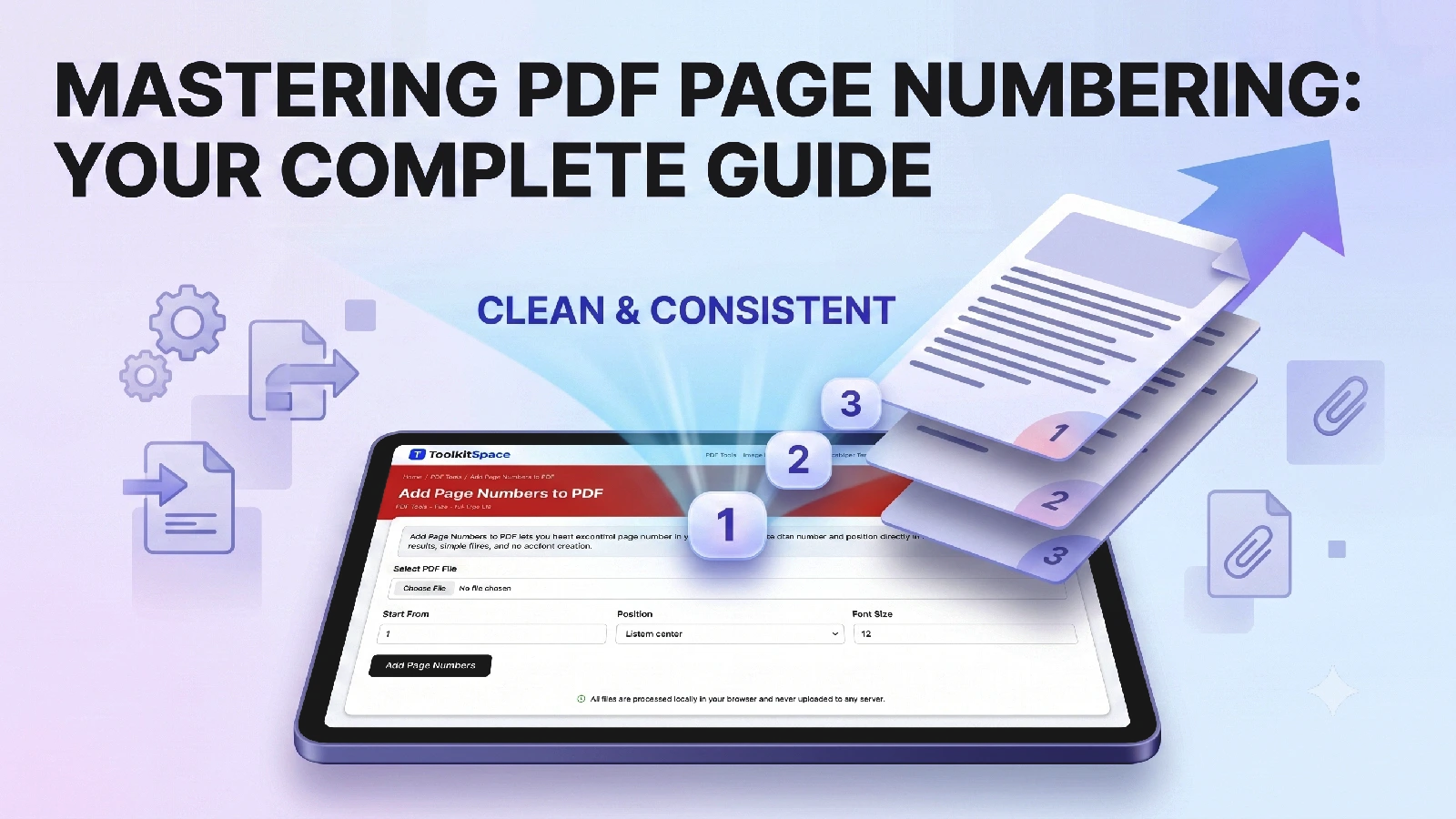
Step-by-Step: Add Numbers to a PDF
- Upload one PDF file.
- Set Start From value.
- Choose Position (bottom-center, bottom-right, or top-right).
- Set Font Size.
- Click Add Page Numbers.
- Download numbered file.
Quick and reliable for standard report formatting.
Picking the Right Settings
Start value
Use Start From 1 for fresh documents. Use custom starts (for example 21) when appending to existing numbered packs.
Position
- bottom-center: presentation/report style
- bottom-right: enterprise/legal style
- top-right: compact page layouts with busy footers
Font size
Most documents look clean between 10 and 14.
- 8 to 10 for dense pages
- 11 to 12 standard
- 13+ for presentation-heavy layouts
Common Use Cases
Client reports
After combining cover, analysis, and appendix sections, add one consistent page sequence so references are unambiguous.
Policies and SOPs
Numbering helps versioned internal documents where teams quote exact page sections in audits and training.
Legal packets
Page references are frequently required in legal communication. Consistent pagination reduces review friction.
Mistakes to Avoid
Numbering before final arrangement
If pages are still moving, numbering can become misleading.
Fix: finalize order with Rearrange PDF Pages first.
Choosing hard-to-read positions
Numbers can clash with footers or stamps.
Fix: test first 2 pages and pick the position with strongest contrast.
Inconsistent style across related documents
When multiple docs belong together, mismatch in numbering style looks unprofessional.
Fix: maintain a basic internal numbering standard.
Recommended Companion Tools
- Split PDF for section extraction
- Rearrange PDF Pages for page order fixes
- Add Watermark to PDF for status labels
- Compress PDF for distribution-ready size
Final Thoughts
Adding page numbers is one of the highest-impact finishing steps for professional PDF output. It takes seconds and greatly improves readability, referencing, and review quality.
Use Add Page Numbers to PDF once your structure is final, and keep placement/font consistent across your document sets.
Frequently Asked Questions
Can numbering start from a value other than 1?
Yes. Set a custom start number so appendices or continued sections can follow previous documents.
Where should page numbers be placed?
Bottom-center is most common for reports; bottom-right is common in legal and business documents; top-right works for some templates.
Will existing page content be changed?
No base content is removed. The page number is drawn as an additional text layer in the output PDF.
Can I use this after merging PDFs?
Yes, and that is a common workflow to ensure one continuous page sequence.
Tools mentioned in this guide
Add Page Numbers to PDF
Insert sequential page numbers in your PDF with customizable start number and position.
Add Watermark to PDF
Stamp custom watermark text across PDF pages with adjustable opacity and size.
Rearrange PDF Pages
Reorder pages in a PDF by dragging and dropping page thumbnails into the desired order.
Split PDF
Extract specific pages or page ranges from a PDF into a new file.
More on PDF Tools
View all articles →How to Add a Watermark to PDF Files (Professional Guide)
Add text watermarks to PDF documents with the right opacity, size, and placement strategy. Practical guide for business and legal use.
How to Convert PDF to Text Online (Without Losing Time)
Learn the fastest way to extract text from PDF files online. Step-by-step guide, practical tips, and common fixes for clean TXT output.