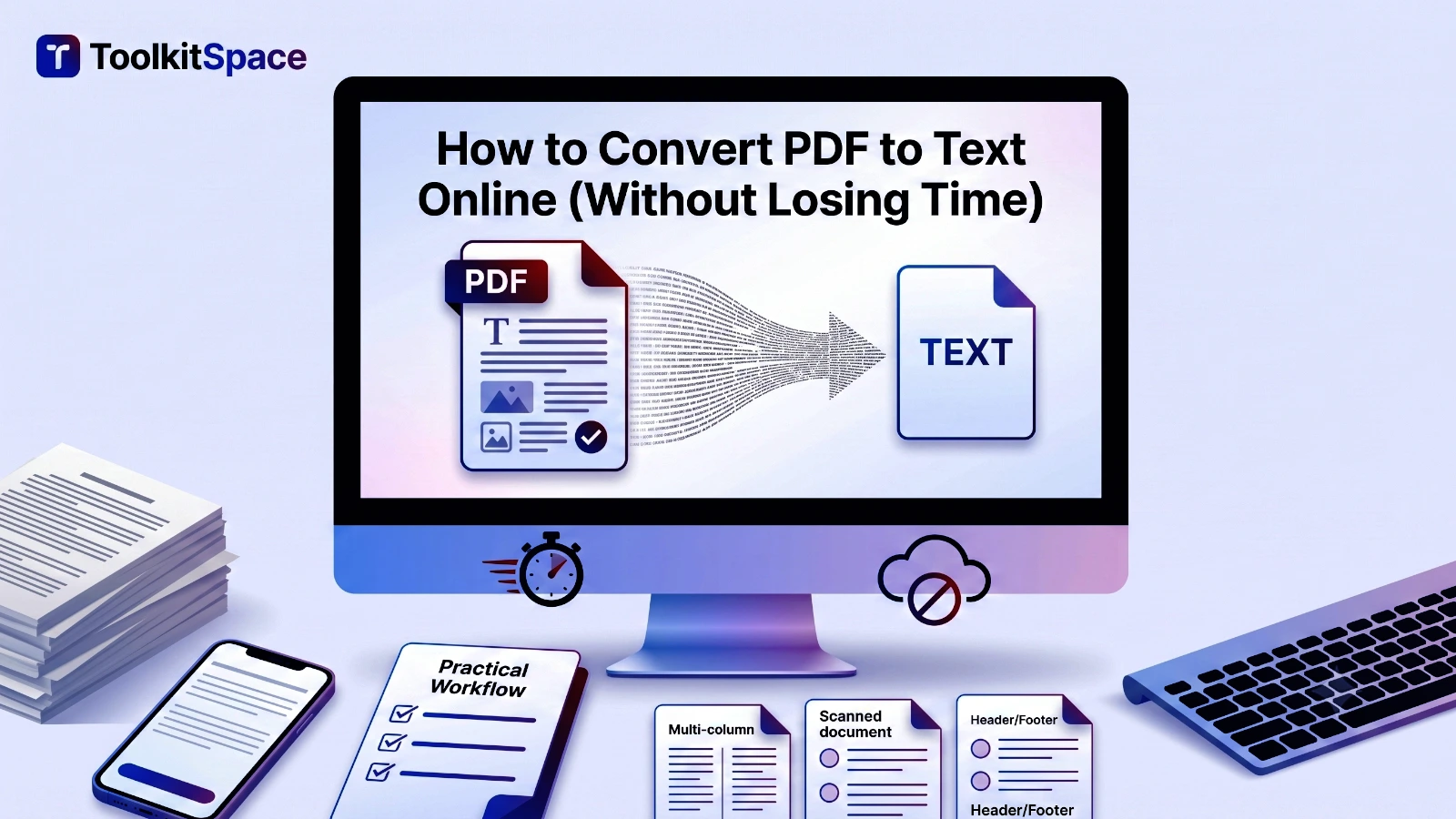
Why PDF to Text Is Still a High-Value Workflow
Many teams still receive content in PDF format even when they need editable text. Contracts, reports, invoices, SOPs, and documentation often arrive as PDFs, which then need to be reused in emails, CMS entries, spreadsheets, or knowledge bases.
A fast PDF-to-text workflow helps you:
- reuse content without retyping
- speed up content migration projects
- search and index document content faster
- reduce manual copy errors
If you only need text and not full layout editing, extracting to TXT is often the quickest route.
Step-by-Step: Extract Text from a PDF
Use PDF to Text in ToolkitSpace:
- Open the tool page.
- Upload one PDF file.
- Click Extract Text.
- Review the output by page blocks.
- Copy text instantly or download as a .txt file.
That is it. No account, no install, no upload queue.
When Results Look “Messy” and How to Improve Them
PDF text extraction can be affected by how the original file was built. Here are common issues and practical fixes.
1. Multi-column pages mix line order
Some magazines, brochures, or reports use two-column layout. Extracted lines can appear interleaved.
Fix:
- First use Extract PDF Pages or Split PDF to isolate the required sections.
- Extract smaller, cleaner page sets.
2. Header/footer noise repeats on every page
Many documents include page headers and footers that pollute plain text output.
Fix:
- Remove unnecessary pages first with Remove PDF Pages.
- Clean repeated lines quickly in a text editor with find/replace.
3. Scanned documents return little or no text
If the PDF is made of images, extraction can only read embedded text objects.
Fix:
- Use OCR software first, then run PDF to Text again on the OCR-processed PDF.
Best Practices for Teams
Standardize naming and storage
Name output files clearly, for example:
- policy-v2-extracted.txt
- q2-report-text.txt
This avoids confusion when multiple versions exist.
Keep the source PDF
Do not delete the original. TXT is useful for editing and indexing, but the PDF remains the source of record for formatting and legal presentation.
Validate critical numbers
For legal, financial, or compliance content, verify critical values after extraction. Always do a quick side-by-side check for tables and totals.
A Practical Workflow You Can Reuse
For large document sets, this pipeline works well:
- Organize files by topic.
- Use Split PDF for targeted ranges.
- Use PDF to Text to extract content.
- Merge refined outputs if needed with Merge PDF for archive consistency.
This keeps editing fast while preserving a clean source trail.
Final Thoughts
If your goal is speed, searchable content, and easier editing, PDF to TXT is one of the most efficient document workflows.
Use PDF to Text when you need content quickly, especially for republishing, indexing, or drafting. For best output quality, clean the document first by isolating relevant pages and removing unnecessary sections.
Frequently Asked Questions
Can this extract text from scanned PDFs?
Only if the PDF already contains selectable text. Image-only scanned PDFs usually require OCR first.
Will formatting look exactly like the PDF?
Text extraction focuses on readable content, not perfect page layout. Multi-column and heavily designed documents may have reordered lines.
Is it safe to extract sensitive PDF text online?
ToolkitSpace processes files in your browser, so your document is not uploaded to a server.
Can I copy only one section after extraction?
Yes. You can copy only the required part from the output text area or download the full TXT and edit it.
Tools mentioned in this guide
PDF to Text
Extract readable text from PDF files in seconds and download it as a TXT file.
Extract PDF Pages
Extract specific pages or page ranges from a PDF into a new file.
Split PDF
Extract specific pages or page ranges from a PDF into a new file.
Merge PDF
Combine multiple PDF files into a single document in your preferred order.
More on PDF Tools
View all articles →How to Add Page Numbers to PDF (Clean and Consistent)
Learn how to add page numbers to PDF files with correct start values and placement. Perfect for reports, manuals, and client documents.
How to Add a Watermark to PDF Files (Professional Guide)
Add text watermarks to PDF documents with the right opacity, size, and placement strategy. Practical guide for business and legal use.