Why Watermark PDFs at All?
Watermarking is one of the simplest ways to add context and control to shared documents.
It helps with:
- indicating document status (DRAFT, FINAL, INTERNAL)
- reducing accidental misuse of sensitive files
- adding brand identity for client-facing exports
- clarifying ownership in collaborative workflows
A watermark does not replace permissions, but it adds a clear visual signal that prevents many everyday mistakes.
The 3 Watermark Settings That Matter Most
Using Add Watermark to PDF, focus on these settings:
1. Text
Keep it short and clear:
- DRAFT
- CONFIDENTIAL
- INTERNAL USE
- SAMPLE
Avoid long sentences. Long strings become hard to scan and can clutter pages.
2. Opacity
A good range for readability is usually 0.15 to 0.30.
- below 0.15: may be too faint
- above 0.35: may interfere with reading
3. Font size
Use size based on page density:
- 24 to 36 for dense text pages
- 36 to 48 for lighter layouts and larger pages
Step-by-Step: Add Watermark to a PDF
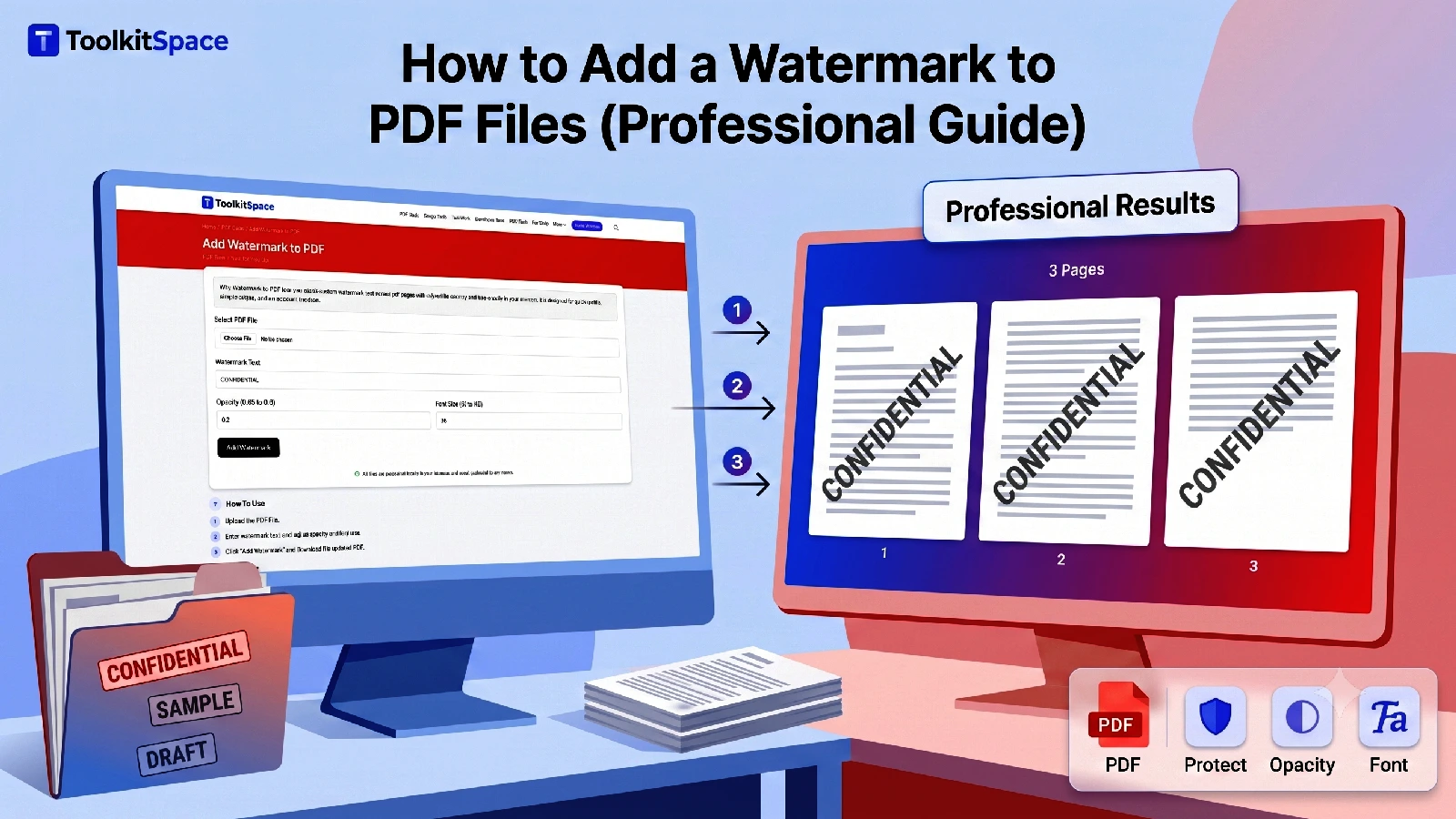
- Open Add Watermark to PDF.
- Upload your PDF.
- Enter watermark text.
- Set opacity and font size.
- Click Add Watermark.
- Download the output file.
Always review 2 to 3 pages before sharing broadly.
Recommended Presets
For internal drafts
- Text: DRAFT
- Opacity: 0.20
- Font size: 36
For confidential documents
- Text: CONFIDENTIAL
- Opacity: 0.25
- Font size: 34
For sample/public previews
- Text: SAMPLE
- Opacity: 0.18
- Font size: 40
These are starting points. Adjust based on page background and content density.
Common Mistakes to Avoid
Overpowering watermark
If the watermark competes with text, users complain and accuracy drops during review.
Fix:
- lower opacity first
- then reduce font size
Using different versions manually
Teams sometimes watermark separate files in different settings, causing inconsistency.
Fix:
- document one standard watermark preset per use case
- keep a short internal naming standard
Not preserving original files
Always keep a clean source PDF. Watermarked files are distribution copies, not master copies.
Combine Watermarking with Other PDF Steps
For polished output, this sequence is effective:
- Merge and organize sections with Merge PDF.
- Add page sequence with Add Page Numbers to PDF.
- Apply watermark with Add Watermark to PDF.
- Optimize file size with Compress PDF.
This creates a consistent, review-ready package.
Final Thoughts
Watermarking is a small step that delivers big operational clarity. If your team shares drafts, legal files, or branded client documents, a clean watermark workflow prevents confusion and improves control.
Start with simple text, moderate opacity, and consistent presets using Add Watermark to PDF.
Frequently Asked Questions
What watermark text should I use for drafts?
Common options are DRAFT, INTERNAL, SAMPLE, CONFIDENTIAL, or FOR REVIEW depending on your process stage.
Can watermarking reduce readability?
Yes, if opacity is too high or text is too large. Keep opacity low and test one page first.
Is watermarking reversible?
Usually no. Once exported, watermark text is embedded in the new file. Keep an original copy.
Can I watermark all pages at once?
Yes. ToolkitSpace applies watermark text to all pages in one step.
Tools mentioned in this guide
Add Watermark to PDF
Stamp custom watermark text across PDF pages with adjustable opacity and size.
Add Page Numbers to PDF
Insert sequential page numbers in your PDF with customizable start number and position.
Compress PDF
Reduce PDF file size while maintaining readable text quality.
Merge PDF
Combine multiple PDF files into a single document in your preferred order.
More on PDF Tools
View all articles →How to Add Page Numbers to PDF (Clean and Consistent)
Learn how to add page numbers to PDF files with correct start values and placement. Perfect for reports, manuals, and client documents.
How to Convert PDF to Text Online (Without Losing Time)
Learn the fastest way to extract text from PDF files online. Step-by-step guide, practical tips, and common fixes for clean TXT output.