Introduction
PDF files are everywhere — from business reports and invoices to academic papers and ebooks. While the format is excellent for preserving document layout across devices, PDF files can quickly become large and unwieldy, especially when they contain high-resolution images, embedded fonts, or complex graphics.
Large PDF files create real problems in daily workflows. They take longer to upload and download, eat into email attachment limits, consume valuable cloud storage, and slow down document management systems. If you have ever tried to email a 25 MB PDF only to get bounced by a size limit, you know the frustration.
The good news is that you can significantly reduce PDF file size without sacrificing readability. In this complete guide, we will walk you through everything you need to know about compressing PDFs online, including a step-by-step tutorial using ToolkitSpace’s Compress PDF tool.
What Is PDF Compression?
PDF compression is the process of reducing the file size of a PDF document by optimizing its internal components. A typical PDF file contains several elements that contribute to its overall size:
- Images: Photos and graphics embedded in the document are often the largest contributors to file size. High-resolution images at 300 DPI can make a single page weigh several megabytes.
- Fonts: Embedded fonts ensure the document looks the same on any device, but each font family can add hundreds of kilobytes.
- Metadata: Information about the document author, creation date, and editing history adds to the file size.
- Object streams: The internal structure of PDF files uses streams of data that may not be optimally organized.
PDF compression works by applying different optimization techniques to these components. Image resampling reduces the resolution of embedded images to a level that is still perfectly readable on screen. Font subsetting removes unused characters from embedded fonts. Stream compression applies mathematical algorithms like Deflate to reduce the storage space needed for internal data.
The key distinction is between lossy and lossless compression. Lossless compression reduces file size without any loss of information — the decompressed output is identical to the original. Lossy compression achieves greater size reductions by discarding some information that is unlikely to be noticeable to the reader.
Step-by-Step Guide: Compress PDF with ToolkitSpace
Here is how to compress a PDF file using ToolkitSpace’s free online compressor:
Step 1: Open the Tool
Navigate to ToolkitSpace Compress PDF. The tool loads instantly in your browser — no installation, no sign-up, and no waiting for a server connection.
Step 2: Upload Your PDF
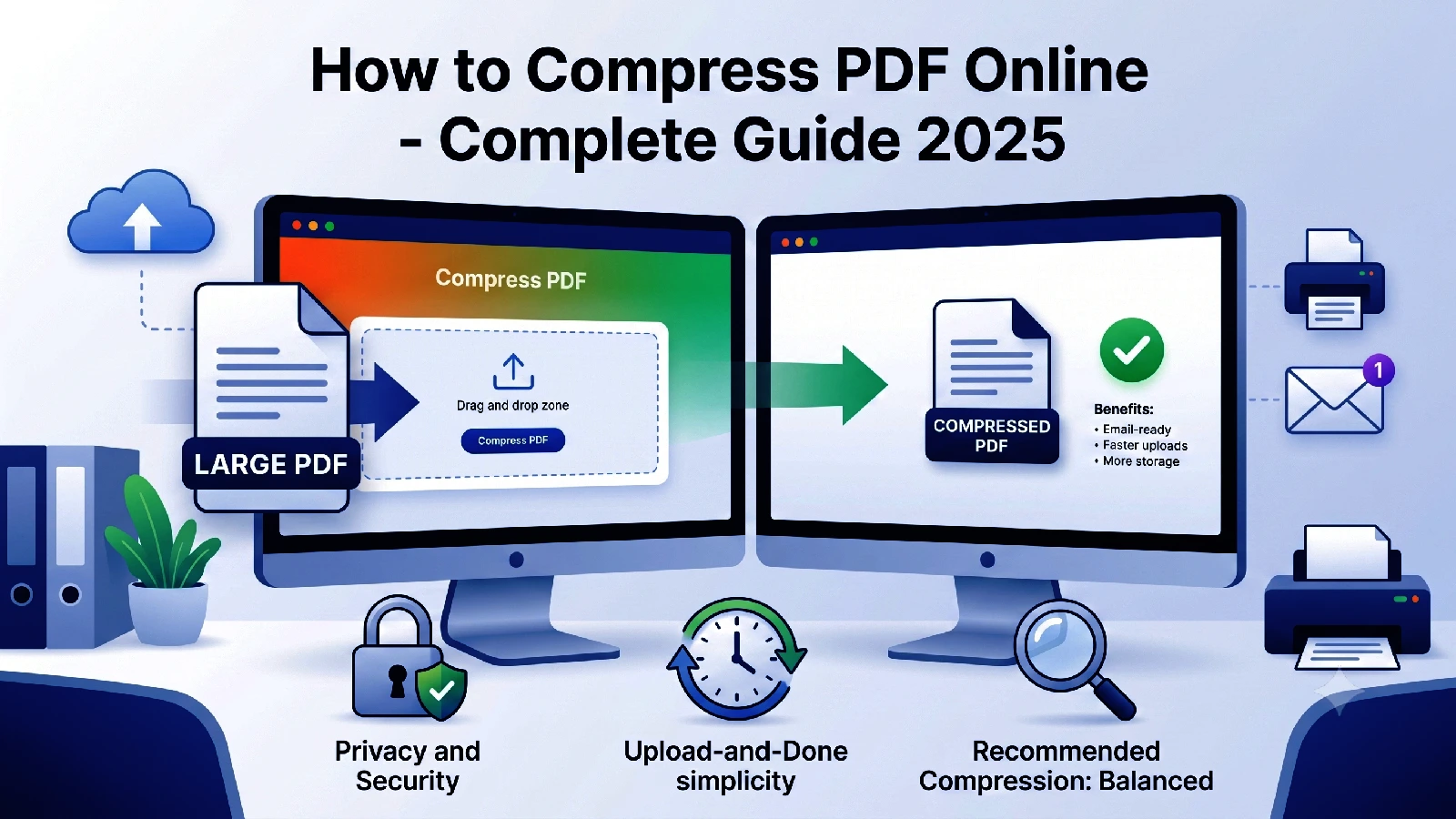
Click the “Select File” button or drag and drop your PDF onto the upload area. The tool accepts PDF files up to 100 MB in size. Your file stays completely private because all processing happens locally in your browser.
Step 3: Wait for Processing
The compression algorithm analyzes your PDF structure and applies optimizations automatically. Processing time depends on the file size and complexity — most files are compressed within a few seconds.
Step 4: Review Results
After processing, you will see a comparison showing:
- Original file size
- Compressed file size
- Percentage reduction achieved
This helps you verify that the compression meets your needs before downloading.
Step 5: Download the Compressed PDF
Click the download button to save the compressed file to your device. The output file maintains the same page layout, text content, and readability as the original — just at a smaller file size.
Benefits of Compressing PDFs
Faster File Sharing
Compressed PDFs transfer faster over any connection. A 20 MB report compressed to 5 MB uploads four times faster to email, cloud storage, or messaging platforms. This adds up significantly when you share documents regularly.
Meet Email Attachment Limits
Most email providers limit attachments to 20-25 MB. Compressing PDFs helps you stay within these limits without needing to split documents or use third-party file sharing services.
Save Storage Space
Whether you store files on local drives, cloud services, or document management systems, smaller files mean more available space. For organizations managing thousands of PDFs, compression can reclaim gigabytes of storage.
Faster Web Performance
If you host PDF documents on your website for download, smaller files improve user experience. Visitors spend less time waiting for downloads, and your server bandwidth costs decrease.
Better Mobile Experience
Mobile users often deal with slower connections and limited storage. Compressed PDFs are more accessible on smartphones and tablets, loading faster and taking less device space.
Common Mistakes When Compressing PDFs
Over-Compression
Applying too aggressive compression to image-heavy documents can make photos and graphics appear pixelated or blurry. Always preview the compressed output to ensure quality remains acceptable for your use case.
Compressing Already-Compressed Files
Running compression on a PDF that was already optimized rarely produces significant additional savings. The second pass may even slightly increase file size due to processing overhead. Check the original file size first — if it is already small relative to its page count, compression may not help.
Ignoring the Document Purpose
A PDF meant for professional printing requires higher quality than one intended for on-screen reading. Before compressing, consider how the document will be used. Screen-only documents can tolerate more aggressive compression than print-ready files.
Not Checking the Output
Always open the compressed PDF and scroll through it to verify that text remains sharp, images are clear enough, and no content has been corrupted. This takes just a moment and prevents sending a damaged file.
Forgetting About Links and Bookmarks
Some compression methods can strip interactive elements like hyperlinks, bookmarks, and form fields from a PDF. ToolkitSpace’s compressor preserves these elements, but it is good practice to verify them after compression.
When Should You Compress a PDF?
Compression is most beneficial in these scenarios:
- Before emailing: When a PDF exceeds your email provider’s attachment limit
- Before uploading: When uploading to platforms with file size restrictions
- For archiving: When storing large collections of PDFs for long-term access
- For web hosting: When serving PDFs for download on your website
- After scanning: Scanned documents are often unnecessarily large because the scanner captures at maximum resolution
Technical Tips for Maximum Compression
To get the best compression results:
- Remove unnecessary pages before compressing. Use ToolkitSpace’s Split PDF tool to extract only the pages you need.
- Combine small PDFs first using Merge PDF — a single optimized file is often smaller than multiple separate files.
- Consider the content type: Image-heavy PDFs (brochures, photo documents) will compress more than text-heavy PDFs (legal documents, code listings).
- Check your source application: If you are creating PDFs from Word or PowerPoint, use the “reduce file size” option during export before additional compression.
Privacy and Security
One critical advantage of using ToolkitSpace for PDF compression is the privacy model. Unlike server-based compression tools that require uploading your sensitive documents to third-party servers, ToolkitSpace processes everything directly in your browser using JavaScript.
This means:
- Your files never leave your device
- No data is transmitted over the internet
- There is no risk of server-side data breaches
- You can safely compress confidential documents
This browser-based approach is especially important for business documents, legal contracts, medical records, and any PDF containing personally identifiable information.
Conclusion
Compressing PDF files is a simple optimization that saves time, storage, and bandwidth. Whether you need to meet email attachment limits, speed up file sharing, or reduce storage costs, the right compression tool makes the process effortless.
ToolkitSpace’s Compress PDF offers a fast, private, and free solution that works entirely in your browser. No sign-up needed, no files uploaded to servers, and no quality compromises on text content.
Try it now — upload a PDF and see how much smaller it can get without losing readability.
Frequently Asked Questions
How much can I compress a PDF file?
Typically 20-80% reduction depending on the content. Image-heavy PDFs compress more than text-only documents.
Does compression reduce PDF quality?
ToolkitSpace uses intelligent compression that maintains readable text quality while reducing file size.
Is there a file size limit?
Yes, the maximum file size is 100 MB per PDF file.
Are my files safe during compression?
Absolutely. All processing happens in your browser. Files are never uploaded to any server.
Can I compress multiple PDFs at once?
Currently, you can compress one PDF at a time. For batch processing, compress each file individually.
Tools mentioned in this guide
More on PDF Tools
View all articles →How to Add Page Numbers to PDF (Clean and Consistent)
Learn how to add page numbers to PDF files with correct start values and placement. Perfect for reports, manuals, and client documents.
How to Add a Watermark to PDF Files (Professional Guide)
Add text watermarks to PDF documents with the right opacity, size, and placement strategy. Practical guide for business and legal use.