Introduction
Merging PDF files is one of the most common document tasks in both professional and personal workflows. Whether you need to combine chapters of a report, join scanned documents into a single file, or consolidate invoices for accounting, the ability to merge PDFs quickly and reliably saves considerable time.
Many people resort to expensive desktop software like Adobe Acrobat for this simple task, but you do not need to. Free online tools can merge PDFs just as effectively — and without requiring any installation or subscription. In this guide, we will explain everything about merging PDFs and walk you through the process using ToolkitSpace’s Merge PDF tool.
Why You Might Need to Merge PDFs
Business Documents
Professionals frequently need to combine related documents into a single file. A project proposal might consist of separate PDFs for the cover letter, technical specification, budget breakdown, and appendices. Merging them creates a cohesive package for clients or stakeholders.
Academic Work
Students and researchers often need to combine assignment pages, reference materials, or multiple chapters into one submission file. Universities typically require a single PDF upload for thesis documents that were written in multiple parts.
Legal and Administrative
Legal professionals merge contracts with exhibits, combine correspondence with supporting documents, or join multiple signed pages into a complete agreement. Administrative staff consolidate forms, reports, and records for archiving.
Personal Organization
Scanning multi-page documents on a flatbed scanner produces individual page files that need merging. Travel documents, medical records, and tax paperwork all benefit from being organized into combined PDFs.
Understanding PDF File Structure
Before diving into the how-to, it helps to understand what happens when PDFs are merged. A PDF file consists of:
- Pages: Individual page objects containing text, images, and layout information
- Fonts: Embedded typeface data that ensures consistent rendering
- Metadata: Document properties like title, author, and creation date
- Cross-reference table: An index that maps objects to their locations in the file
- Bookmarks and links: Navigation aids and interactive elements
When you merge PDFs, the tool creates a new document that incorporates all pages from the source files in sequence. Fonts and resources are combined (with duplicates removed when possible), and the cross-reference table is rebuilt. The content on each page remains unchanged.
Step-by-Step: Merge PDFs with ToolkitSpace
Step 1: Open Merge PDF
Navigate to ToolkitSpace Merge PDF. The tool loads instantly in your browser with no setup required.
Step 2: Select Your Files
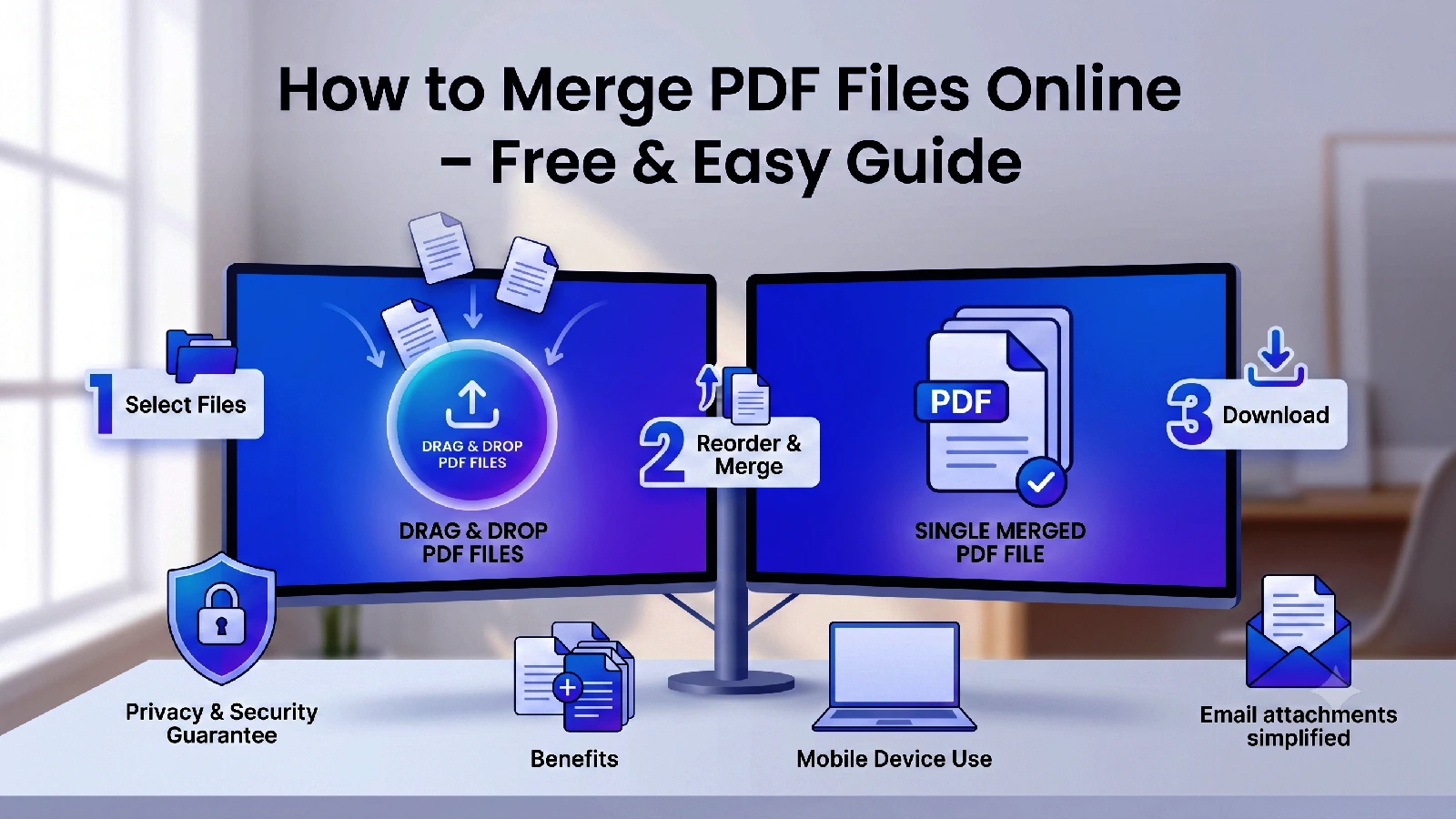
Click “Select Files” or drag and drop your PDF files onto the upload area. You can add between 2 and 20 files, each up to 100 MB. All common PDF versions are supported.
Step 3: Arrange the Order
After uploading, your files appear in a list. Drag and drop them to arrange the order in which they should appear in the final document. The first file in the list becomes the first pages of the merged PDF.
Step 4: Merge
Click the “Merge” button. The tool processes your files locally in the browser, combining them into a single document. Processing time depends on total file size but is typically just a few seconds.
Step 5: Download
Once merging is complete, click “Download” to save the combined PDF to your device. The merged file preserves all content, formatting, and quality from the original documents.
Tips for Better PDF Merging
Plan Your Page Order
Before starting, decide on the sequence of your documents. It is easier to arrange files correctly before merging than to rearrange pages afterward. If you need specific pages from a larger document, use Split PDF first to extract them.
Check File Sizes
If your merged file will be very large, consider compressing the result afterward. Individual PDFs under 5 MB each will typically merge without any issues, but combining many large files can create an unwieldy output.
Verify Page Orientation
Documents from different sources may have different page orientations (portrait vs. landscape). After merging, scroll through the result to verify that all pages display correctly. If any pages need rotation, use Rotate PDF.
Keep Source Files
Always keep your original files after merging. The merged file is a new document — if you need to make changes to one section later, it is easier to edit the original and re-merge than to split and recombine the merged file.
Name Your Output Clearly
Give your merged file a descriptive name that indicates its contents. Instead of “merged.pdf”, use something like “Q4-Report-Complete.pdf” or “Contract-with-Appendices.pdf”. This helps you find the right file later.
Common Use Cases and Best Practices
Combining Scanned Pages
When scanning a multi-page document on a flatbed scanner, you get individual image files or single-page PDFs. After scanning all pages:
- Convert individual images to PDF using Image to PDF if needed
- Merge all pages in order using Merge PDF
- Compress the result to reduce file size from the scan
Creating Complete Reports
For business reports with multiple sections:
- Export each section as a separate PDF from your word processor
- Create a title page and table of contents as separate PDFs
- Merge in order: title page, TOC, introduction, body sections, appendices
- Verify page numbers align with the table of contents
Consolidating Invoices for Accounting
For monthly invoice packages:
- Gather all invoice PDFs for the period
- Sort them by date or vendor name
- Merge into a single file for the accounting department
- Name the file with the period (e.g., “Invoices-June-2025.pdf”)
Assembling Application Packages
For job applications or permit filings:
- Prepare each required document as a separate PDF
- Order according to the submission requirements
- Merge into one file meeting the upload requirement
- Verify total file size meets any submission limits
Privacy and Security Considerations
When merging sensitive documents like contracts, financial records, or personal information, privacy matters. ToolkitSpace’s Merge PDF tool processes everything in your browser:
- No upload required: Files stay on your device throughout the process
- No server storage: Nothing is transmitted over the internet
- No account needed: Use the tool without providing any personal information
- Instant processing: No queuing or waiting for server resources
This makes it safe for merging confidential business documents, legal agreements, and personal records without worrying about third-party access.
Troubleshooting Common Issues
File Not Loading
If a PDF file does not load properly:
- Verify the file is a valid PDF (not a renamed Word doc or image)
- Check that the file size is under 100 MB
- Try opening the file in a PDF reader first to confirm it is not corrupted
- Ensure the PDF is not password-protected
Slow Processing
If merging takes longer than expected:
- Larger files naturally take more time
- Files with many high-resolution images process slower
- Try compressing individual files first, then merging
Unexpected Page Order
If pages appear in the wrong order:
- Check the file arrangement in the tool before clicking Merge
- Remember that all pages from File 1 come before all pages from File 2
- Use Split PDF to extract specific pages if you need to interleave content
Conclusion
Merging PDF files does not require expensive software or complicated workflows. ToolkitSpace’s Merge PDF tool handles the task quickly, privately, and completely free in your browser.
Whether you are combining business reports, consolidating scanned documents, or assembling application packages, the process takes just seconds. Upload your files, arrange the order, click merge, and download the result.
For the best workflow, combine Merge PDF with our other PDF tools: Split PDF to extract specific pages, Compress PDF to reduce file size, and Rotate PDF to fix page orientation.
Frequently Asked Questions
How many PDFs can I merge at once?
You can merge between 2 and 20 PDF files at a time, with each file up to 100 MB in size.
Can I reorder pages before merging?
Yes, you can drag and drop files to arrange them in your preferred order before merging.
Does merging change the content of my PDFs?
No. The tool combines pages in their original state without modifying any content, formatting, or quality.
Are my files uploaded to a server?
No. All processing happens in your browser. Your files never leave your device.
What if one of my PDFs is password-protected?
Password-protected PDFs need to be unlocked before merging. Remove the protection first, then merge.
Tools mentioned in this guide
Merge PDF
Combine multiple PDF files into a single document in your preferred order.
Split PDF
Extract specific pages or page ranges from a PDF into a new file.
Compress PDF
Reduce PDF file size while maintaining readable text quality.
Rotate PDF
Rotate all pages of a PDF by 90, 180, or 270 degrees clockwise.
More on PDF Tools
View all articles →How to Add Page Numbers to PDF (Clean and Consistent)
Learn how to add page numbers to PDF files with correct start values and placement. Perfect for reports, manuals, and client documents.
How to Add a Watermark to PDF Files (Professional Guide)
Add text watermarks to PDF documents with the right opacity, size, and placement strategy. Practical guide for business and legal use.